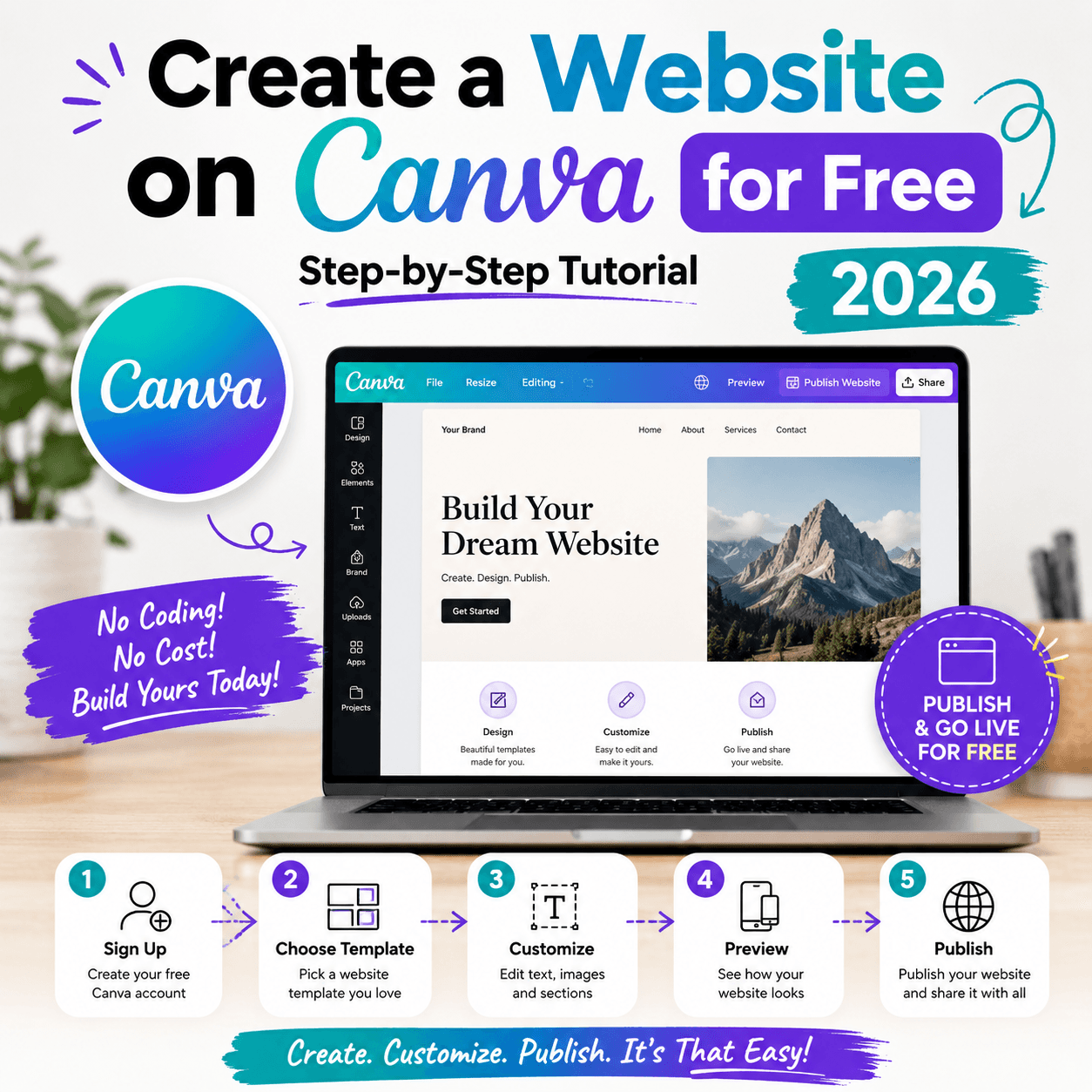
Why Canva Websites Are Dominating in 2026
Imagine launching a professional website in under an hour — no coding, no expensive developers, no overwhelming dashboards. That's exactly what Canva makes possible in 2026, and it's why millions of beginners, freelancers, students, and small business owners are choosing it over traditional website builders.
The no-code movement has fundamentally changed how we think about building an online presence. What used to require HTML knowledge, web hosting contracts, and design software expertise can now be accomplished through a simple drag-and-drop interface. Canva, long celebrated as a graphic design tool, has evolved into a full-featured website builder that makes publishing a professional site accessible to anyone with an internet connection.
In 2026, having an online presence isn't optional — it's essential. Whether you're a freelancer showcasing your portfolio, a student sharing your resume, a startup launching a product, or a local business trying to attract customers, a website is your digital front door. The challenge has always been the cost and complexity of building one. Canva solves both problems.
With AI-powered design tools, hundreds of responsive website templates, and a completely free publishing option, Canva sits at the intersection of simplicity and sophistication. The platform's mobile-first design approach ensures your site looks stunning on every device — critical in a world where over 60% of web traffic comes from smartphones.
This guide walks you through everything you need to know: what Canva's website builder offers, how to design and publish your site step by step, SEO strategies, AI tools, and common mistakes to avoid. By the end, you'll have everything you need to go live — for free — today.
What Is Canva Website Builder?
Canva Website Builder is an integrated feature within the Canva platform that allows users to design, customize, and publish single-page or multi-section websites directly from their Canva account. It requires no coding knowledge and no external hosting setup.
Key Features
Drag-and-Drop Editor: Every element on your page — text, images, buttons, videos, icons — can be placed and resized freely. The interface is the same one Canva users already know from designing social media posts and presentations.
Responsive Templates: Canva offers hundreds of website templates designed for different industries and use cases. Each template is mobile-responsive, meaning it automatically adjusts to look good on phones and tablets.
AI-Assisted Design Tools: Canva's suite of AI tools — including Magic Design, Magic Write, and AI image generation — helps users create polished designs faster than ever. You can generate entire design concepts, write copy, and produce custom images with simple prompts.
Free Publishing: Every Canva account (including the free tier) includes the ability to publish your website to a free Canva subdomain (yourname.my.canva.site). Custom domain connection is available on paid plans.
Interactive Elements: Canva websites support embedded videos, clickable buttons, hover effects, scroll animations, and contact forms — giving them a dynamic, professional feel.
Free vs. Paid Plans
The free Canva plan includes access to hundreds of website templates, basic design tools, free publishing on a Canva subdomain, and collaboration features. Canva Pro adds the Brand Kit for consistent branding, premium templates, AI tools with higher usage limits, custom domain connection, and advanced analytics. Canva Teams builds on Pro with team-sharing workflows and centralized brand management.
SEO in Canva
Canva websites support basic SEO features: you can edit the page title, meta description, and URL slug. Image alt text can be added manually. However, Canva's SEO capabilities are more limited than platforms like WordPress or Webflow — there's no native sitemap submission, limited schema markup support, and no blog functionality on the free plan. For simple landing pages and portfolios, it works well. For complex, content-heavy SEO strategies, a more advanced platform may be needed.
Benefits of Creating a Website on Canva
1. Beginner-Friendly by Design
Canva was built for people without technical backgrounds. The learning curve is nearly flat — if you can drag an image into a document, you can build a Canva website. There's no FTP access, no database management, and no plugin ecosystem to navigate.
2. No Coding Required
Unlike WordPress (which can require HTML/CSS for customization) or Webflow (which has a steeper learning curve), Canva is 100% visual. Every change you make is instantly visible.
3. Fast Website Creation
A basic website can be live in under an hour. Choose a template, swap in your content, adjust colors and fonts, and publish. For freelancers who need a portfolio up quickly or startups building a pre-launch landing page, this speed is invaluable.
4. Modern, Professional Templates
Canva's design team constantly adds new templates that reflect current design trends. In 2026, that means clean layouts, bold typography, asymmetric grids, and subtle animations — the kind of aesthetic that previously required a professional designer.
5. Mobile Responsiveness
All Canva website templates are built to look great on mobile devices. You can preview the mobile version of your site inside the editor and make adjustments before publishing.
6. Completely Free to Start
You can design and publish a fully functional website without spending a cent. The free subdomain (yourname.my.canva.site) is perfectly suitable for portfolios, personal sites, and small business landing pages.
7. AI-Powered Tools
Magic Design can generate a complete website layout from a brief description. Magic Write helps create compelling copy. These AI tools dramatically reduce the time and creative effort required to build a polished site.
8. Great for Portfolios and Landing Pages
Canva excels at visually-driven, single-purpose websites. For creative professionals showcasing their work, coaches promoting their services, or businesses capturing leads, Canva hits the sweet spot of simplicity and design quality.
9. Collaboration Built In
Multiple team members can work on the same Canva design simultaneously. For small agencies, student groups, or startup teams, this real-time collaboration is a significant advantage.
10. Social Media Integration
Canva makes it easy to repurpose your website visuals for Instagram, LinkedIn, Facebook, and other platforms — keeping your brand consistent across every channel.
Business Use Case: A local bakery uses a Canva website as a digital menu and order inquiry page. Built in two hours, it's mobile-friendly and links directly from their Instagram bio.
Student Example: A graphic design student creates a Canva portfolio website to share with internship recruiters. The site showcases their best work in a clean, professional layout at zero cost.
Freelancer Example: A freelance copywriter uses a Canva landing page to capture leads, featuring a bio, service list, testimonials, and a contact form — all published on a free Canva subdomain.
Canva Website vs. Traditional Website Builders
Feature | Canva | WordPress | Webflow | Wix |
|---|---|---|---|---|
Ease of Use | ⭐⭐⭐⭐⭐ Excellent | ⭐⭐⭐ Moderate | ⭐⭐ Steep | ⭐⭐⭐⭐ Good |
SEO Features | ⭐⭐ Basic | ⭐⭐⭐⭐⭐ Advanced | ⭐⭐⭐⭐ Strong | ⭐⭐⭐ Good |
Customization | ⭐⭐⭐ Moderate | ⭐⭐⭐⭐⭐ Unlimited | ⭐⭐⭐⭐⭐ Unlimited | ⭐⭐⭐⭐ Good |
Coding Required | None | Optional/Helpful | Optional | None |
Free Plan | Yes (subdomain) | Yes (limited) | No | Yes (ads) |
Best For | Portfolios, landing pages | Blogs, business sites | Advanced web apps | General websites |
When to Choose Canva
Canva is the right choice when you need a visually polished website quickly, have no coding experience, primarily need a portfolio or landing page, want to use the same tool for all your design work, or are working with a tight (or zero) budget.
When to Choose a More Advanced Platform
If you need a blog with SEO-optimized content marketing, an e-commerce store with product catalogs and checkout, advanced SEO with schema markup and sitemaps, or complex functionality like membership areas or custom databases — then WordPress, Webflow, or Shopify are better fits.
Step-by-Step Tutorial: How to Create a Website on Canva for Free
This is the core of what you came here for. Follow these steps carefully and you'll have a live Canva website by the time you finish reading.
Step 1 — Create a Canva Account
Go to canva.com and click Sign Up. You can register with your Google account, Facebook, or an email address. Choose the free plan — you won't need to enter a credit card. Once inside, you'll land on Canva's homepage dashboard.
Beginner Tip: If you already use Canva for social media graphics or presentations, your existing account works perfectly. No need to create a separate one.
Step 2 — Search for Website Templates
From the Canva homepage, type "website" in the search bar and press Enter. You'll see a dedicated Website category. Click on it to browse templates organized by category:
Business websites — clean, professional layouts with service sections, team bios, and contact forms
Portfolio websites — visually-focused layouts for designers, photographers, and creatives
Landing pages — single-section pages built to convert visitors into leads
Personal websites — minimalist layouts for resumes and personal brands
Event websites — bold designs for conferences, weddings, or product launches
Click on any template to preview it. When you find one you like, click Customize This Template to open it in the editor.
Pro Tip: Filter templates by color palette or industry to narrow down faster. Don't worry about matching the template perfectly — every element is fully customizable.
Step 3 — Customize the Design
Once inside the editor, you'll see your template displayed as a full-page canvas. Here's what to customize:
Text: Click on any text element to edit it. Change the font from the toolbar at the top — Canva offers hundreds of fonts, including many premium options on the free plan. Adjust font size, weight, color, and alignment.
Colors: Click the color swatch in the toolbar to change any element's color. For a cohesive look, use your brand's hex color codes. Canva Pro users can save these in the Brand Kit for one-click application.
Images: Click any image placeholder and choose Replace to upload your own images or browse Canva's stock library. Canva has millions of free photos, illustrations, and icons.
Logo: If you have a logo, upload it via the Uploads tab on the left panel. Drag it onto the canvas and position it in your header.
Layout: To rearrange sections, click on a section and drag it to a new position. You can also delete sections you don't need or duplicate ones you want to repeat.
Expert Recommendation: Keep your font choices to two: one display font for headings and one readable font for body text. Canva's font pairing suggestions can help.
Step 4 — Add Website Sections
A complete website typically includes several distinct sections. In Canva, you can add new sections by clicking the + button between existing sections or by inserting a new page (Canva websites treat each page as a scrollable section).
Here's what to include:
Hero Section: This is the first thing visitors see. Include a compelling headline, a brief subheading, and a clear call-to-action button ("Book a Call," "See My Work," "Get Started").
About Section: Tell your story. Who are you? What do you do? Why should visitors trust you? Keep this human and conversational.
Services or Work Section: For businesses, list your core services with brief descriptions. For creatives, showcase your portfolio in a grid or gallery layout.
Testimonials: Social proof is powerful. Add 2–3 client quotes or reviews to build trust.
Contact Section: Include a way for visitors to reach you — an email address, contact form, or social media links. Canva has a built-in form element you can add from the Elements panel.
CTA (Call to Action): End every major section with a clear next step. What do you want visitors to do?
Step 5 — Add Animations and Interactive Elements
Canva websites support several interactive features that make them feel dynamic:
Animations: Select any element and click the Animate button in the toolbar. Choose from fade-in, rise, pop, and other entry animations. You can animate individual elements or entire sections.
Scroll Effects: Available in some templates, scroll effects create parallax-style movement as visitors scroll down the page.
Hover Effects: Buttons and image elements can have hover states that change color or opacity when moused over.
Videos: Click Embed in the elements panel to add YouTube or Vimeo videos directly to your page. Video backgrounds are also supported.
Buttons: Add clickable buttons from the Elements panel. Connect them to external URLs, anchor links within your page, or email addresses.
Beginner Tip: Less is more with animations. One or two subtle entry animations per section looks professional. Animating everything looks chaotic.
Step 6 — Optimize for Mobile Devices
Before publishing, always check your mobile layout. Click the Phone icon at the top of the editor to switch to mobile preview. Common issues to look for:
Text that's too small to read on a phone screen
Images that are cropped incorrectly
Buttons that are too small to tap comfortably
Sections that look too sparse or too crowded on narrow screens
Canva's responsive engine handles most of the heavy lifting automatically, but you may need to adjust font sizes or reposition elements for the mobile view. Canva lets you make separate adjustments for desktop and mobile without affecting the other.
Mobile Optimization Checklist: Text readable at 14px+, buttons at least 44px tall, hero section visible above the fold, loading time under 3 seconds.
Step 7 — SEO Basics in Canva
Before publishing, configure your basic SEO settings. Click the three-dot menu (⋯) at the top right of the editor and select Settings or SEO Settings (depending on your version).
Page Title: Write a descriptive, keyword-rich title under 60 characters. Example: "Jane Smith — Freelance Graphic Designer in Mumbai."
Meta Description: Write a 150–160 character description that includes your primary keyword and a compelling reason to click.
URL Slug: Customize the URL to be clean and descriptive. Instead of the auto-generated string, use something like "jane-smith-designer."
Image Alt Text: Click on each key image, select Edit Alt Text, and describe the image with relevant keywords. This helps with image search and accessibility.
Page Speed: Compress large images before uploading. Use Canva's built-in image optimizer when possible. Avoid auto-playing videos, which slow load time.
Step 8 — Publish Your Website for Free
When you're happy with your design, it's time to go live. Click the Publish Website button at the top right of the editor.
You'll be prompted to choose your publishing option:
Free Canva Domain: Your site will be published at a URL like yourname.my.canva.site. This is completely free and works well for portfolios, resumes, and landing pages.
Custom Domain (Canva Pro): Connect your own domain (e.g., yourname.com) purchased from a registrar like Namecheap, GoDaddy, or Google Domains. This gives your site a more professional appearance and improves SEO.
After choosing your domain, click Publish. Your site is now live and publicly accessible.
Expert Recommendation: Even if you start with a free subdomain, buy your own domain name as soon as possible. It costs around $10–15/year and significantly improves your professional credibility and SEO potential.
Step 9 — Share and Promote Your Website
Publishing is just the beginning. Here's how to get your new site noticed:
Social Media: Share your website link on Instagram, LinkedIn, Twitter/X, and any platform where your audience is active. Add it to every bio.
Google Indexing: Submit your URL to Google Search Console to request indexing. While Canva sites can be indexed organically, manual submission speeds up the process.
Local SEO Basics: If you're a local business, list your website on Google Business Profile, Yelp, and local directories. Consistent NAP (Name, Address, Phone) information across listings boosts local search visibility.
Email Signature: Add your website URL to your email signature — every email you send becomes passive promotion.
QR Code: Use Canva's QR code generator to create a code that links to your website. Add it to business cards, flyers, or packaging.
Best Canva Website Ideas in 2026
Not sure what kind of website to build? Here are the most popular Canva website use cases this year:
Portfolio Websites — Designers, photographers, illustrators, and architects use Canva to create visually stunning portfolios. The image-forward templates make creative work shine.
Resume Websites — A resume website goes beyond a PDF. Include a bio, work history, skills, testimonials, and downloadable CV in one polished page.
Personal Brand Websites — Coaches, consultants, and thought leaders use Canva to establish their online identity, share their story, and collect email subscribers.
Event Websites — Weddings, conferences, product launches, and local events benefit from a simple, beautiful landing page with date, location, RSVP link, and schedule.
Startup Landing Pages — Pre-launch startups use Canva landing pages to validate ideas, collect email signups, and build early buzz — often before the actual product exists.
Restaurant and Food Business Pages — Menu displays, location information, hours, and reservation links work perfectly in Canva's one-page format.
Coaching and Consulting Websites — Life coaches, business consultants, and fitness trainers use Canva to present their services, credentials, testimonials, and booking links.
Digital Product Pages — Selling an ebook, template pack, or online course? A Canva landing page with a compelling offer and clear CTA converts browsers into buyers.
Agency Microsites — Marketing agencies create quick-turnaround project microsites for client campaigns using Canva's brand-consistent design tools.
Canva Website SEO Tips
Canva websites can appear in Google search results, but they face some inherent SEO limitations. Here's how to maximize your chances of ranking.
Understanding Canva's SEO Limitations
Canva doesn't support blogging (on the free plan), has limited structured data (schema markup), doesn't generate XML sitemaps automatically, and has less granular control over technical SEO than platforms like WordPress. Accept these limitations and focus on what Canva does well.
Best Practices for Ranking
Target low-competition keywords. Because Canva sites have less SEO authority than established CMS platforms, target long-tail, local, or niche keywords with lower competition. "Freelance illustrator in Bengaluru" will rank more easily than "graphic designer."
Write content-rich sections. Don't rely on images alone. Include 300–500 words of genuine, helpful text on your main sections. Google needs text to understand what your page is about.
Use heading hierarchy correctly. Your page title should be an H1. Section headings should be H2s. Sub-points should be H3s. Canva's template headings may not follow this automatically — check and adjust.
Optimize for local search. Include your city, neighborhood, or region naturally in your page title, meta description, and body text. This dramatically improves local search visibility.
Build external backlinks. Share your Canva website URL on your social media profiles, LinkedIn, GitHub, Behance, and any industry directories. Every legitimate backlink improves your search authority.
Speed matters. Compress images to under 200KB before uploading. Avoid embedding too many external widgets. A fast-loading site improves both user experience and search rankings.
Quick SEO Checklist for Canva Websites
[ ] Custom page title with primary keyword
[ ] Meta description written (150–160 characters)
[ ] URL slug is clean and descriptive
[ ] All key images have alt text
[ ] Mobile preview checked and optimized
[ ] At least 300 words of original text content
[ ] Contact information clearly visible
[ ] CTA button present above the fold
[ ] Site submitted to Google Search Console
[ ] Listed on Google Business Profile (for local businesses)
AI Overview and GEO Optimization
In 2026, appearing in Google's AI Overviews and other generative AI answers is increasingly valuable. To improve your chances, write in clear, direct sentences that answer specific questions. Use question-based headings like "What services do I offer?" or "How can I help you?" Structure information in easy-to-parse formats: short paragraphs, bullet points, and explicit statements. Think about the questions your potential visitors might ask an AI assistant, and make sure your page content answers them.
Canva AI Features for Website Creation
Canva has invested heavily in AI tools, and in 2026, they're genuinely useful for website creation.
Magic Design: Describe your website concept in a sentence or two, and Magic Design generates a complete layout suggestion. It's a fantastic starting point when you're facing a blank canvas.
Magic Write: Canva's built-in AI writing assistant generates headlines, service descriptions, bio copy, and CTAs based on brief prompts. It's not a replacement for thoughtful writing, but it dramatically speeds up the drafting process.
AI Image Generation: Generate custom images directly within Canva by describing what you want. This is particularly useful for creating unique hero images, illustrations, and background visuals that aren't available in stock libraries.
Brand Kit: Available on Canva Pro, the Brand Kit stores your logo, color palette, and font choices. When building a website, applying your Brand Kit ensures design consistency across every element in seconds.
Background Remover: Instantly remove the background from product photos or headshots, a feature that used to require Photoshop expertise.
Smart Resize: If you repurpose your website hero graphic for social media, Smart Resize automatically reformats the design to the correct dimensions for each platform.
How AI Improves Your Website Workflow
These AI tools collectively reduce the time to build a professional website from a full day to a few hours. They lower the barrier for non-designers while still producing results that look genuinely custom. The best approach is to use AI to generate a first draft, then apply your own judgment, brand voice, and specific content to make it authentically yours.
Canva Website Pricing Guide
Plan | Key Features | Best For | Price |
|---|---|---|---|
Canva Free | Hundreds of templates, free subdomain publishing, basic design tools, limited AI features | Students, personal projects, simple portfolios | Free forever |
Canva Pro | All Free features + Brand Kit, premium templates, custom domain, advanced AI tools (Magic Write, Background Remover), analytics | Freelancers, small businesses, professional portfolios | ~$15/month (or ~$120/year) |
Canva Teams | All Pro features + team collaboration, centralized brand management, admin controls | Agencies, startups, marketing teams | ~$10/person/month (min. 3 people) |
Hidden Limitations to Know
The free subdomain (yourname.my.canva.site) is fully functional but not ideal for serious business use. Custom domains require Canva Pro. If you purchase a domain from a third-party registrar, connecting it to Canva Pro adds a professional touch but is an additional annual cost (~$10–15/year for the domain itself). Some premium templates and stock assets are marked with a crown icon and require a Pro subscription to use without a watermark. Always check that all your template elements are free-tier accessible before investing significant design time.
Common Canva Website Mistakes to Avoid
Overusing Animations: Applying entry animations to every single element on a page creates a visually exhausting, unprofessional experience. Choose one or two animations per section maximum.
Skipping Mobile Optimization: Many first-time builders design on desktop and forget to check mobile. Always preview the mobile version before publishing — it often needs separate adjustments.
Weak or Missing CTAs: Every page needs a clear next step. "Contact Me," "Book a Free Call," "Download My Portfolio" — make your call-to-action prominent, specific, and action-oriented.
Too Much Text, Too Small: Walls of small text drive visitors away. Use 16–18px body text, short paragraphs, and plenty of white space. Write for scanning, not reading.
Slow-Loading Media: Uploading uncompressed 5MB images dramatically slows your site. Compress images to under 200KB using a tool like TinyPNG or Squoosh before uploading.
Poor Branding Consistency: Using five different fonts or eight different colors makes a site look amateur. Commit to two fonts and three to four brand colors throughout.
Neglecting SEO Entirely: Even with Canva's limited SEO tools, filling in your page title, meta description, and image alt text takes five minutes and makes a real difference. Don't skip it.
Frequently Asked Questions
Is Canva website builder free? Yes. Canva's free plan includes the ability to design and publish a website on a free subdomain (yourname.my.canva.site) with no credit card required. Paid plans unlock custom domain connections and premium features.
Can Canva websites rank on Google? Yes, Canva websites can be indexed and ranked by Google. They support basic on-page SEO (title, meta description, alt text). However, for competitive keywords or content-heavy SEO strategies, platforms with more advanced SEO features may be more effective.
Is Canva good for business websites? Canva is excellent for simple business websites, landing pages, and service showcases. It's less suitable for businesses needing a blog, e-commerce functionality, or complex SEO. For these needs, WordPress or Shopify are better choices.
Can I connect a custom domain to Canva? Yes, but only on Canva Pro or Teams plans. You purchase a domain from a registrar (Namecheap, GoDaddy, Google Domains) and connect it through Canva's domain settings. The free plan only supports the Canva subdomain.
Is Canva better than Wix? It depends on your needs. Canva has superior design tools and is faster for visual-focused sites. Wix has stronger SEO features, e-commerce capabilities, and a more extensive app marketplace. For design-forward portfolios and landing pages, Canva wins. For feature-rich business sites, Wix has the edge.
Can I sell products on a Canva website? Canva websites don't have native e-commerce functionality. You can add buttons that link to external platforms like Gumroad, Etsy, or Shopify. For full e-commerce, use a dedicated platform.
Are Canva websites mobile responsive? Yes. All Canva website templates are designed to be mobile-responsive. The editor also lets you preview and adjust the mobile layout separately from the desktop view.
What are the main limitations of Canva websites? Key limitations include no native blogging, limited e-commerce, basic SEO tools (no sitemap, limited schema), custom domains only on paid plans, and less design flexibility than platforms like Webflow or WordPress.
How long does it take to build a Canva website? A basic Canva website can be built and published in 1–3 hours. A more detailed, multi-section site with custom content and careful SEO optimization typically takes a full day.
Can multiple people work on a Canva website? Yes. Canva supports real-time collaboration. You can invite team members to edit a design simultaneously, making it ideal for teams and agencies.
Do I need hosting for a Canva website? No. Canva handles hosting automatically when you publish. You don't need to set up a hosting account, configure servers, or pay separate hosting fees for the free subdomain option.
Can I use my own images on a Canva website? Absolutely. You can upload your own photos, logos, and graphics directly to Canva via the Uploads panel. These can be used anywhere on your website design.
Conclusion: Build Your Website on Canva Today
In 2026, there's no longer a good reason to put off building your online presence. Canva has democratized professional web design to a degree that was unimaginable even five years ago. What once required design training, coding skills, and a hosting budget can now be accomplished by anyone — in an afternoon — for free.
Canva works best as a website solution when you need a visually polished result quickly, when simplicity and speed matter more than advanced functionality, and when your primary goal is making a strong first impression. For portfolios, landing pages, personal brands, event pages, and simple business sites, it's genuinely hard to beat.
Its advantages in 2026 are clear: AI-assisted design dramatically cuts production time, mobile-first templates ensure your site works on every device, and the free publishing option removes the financial barrier entirely. The integration of Magic Design, Magic Write, and AI image generation means even complete beginners can produce designs that look like they came from a professional studio.
That said, remember that design is only one part of your online presence. Pair your beautiful Canva site with thoughtful SEO practices — even the basic ones available in the free plan — and a consistent, authentic brand voice. Update your content regularly, build backlinks organically, and use social media to drive traffic to your site.
The future of no-code website building is bright, and Canva is at the forefront of making it accessible. There's a template waiting for you right now that's one customization away from being exactly what you need.
Your next step is simple: go to canva.com, search "website templates," pick one that speaks to your vision, and start building. Your website can be live by tonight.
Related Reads for You
Discover more articles that align with your interests and keep exploring.